-
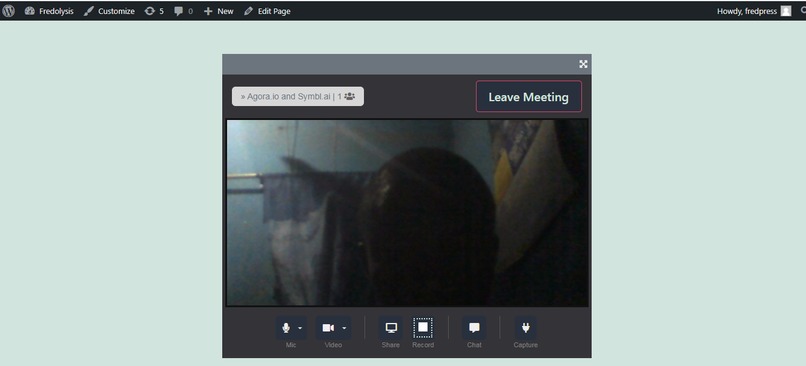
Agora Realtime Video Calls Telepresence Broadcast
-
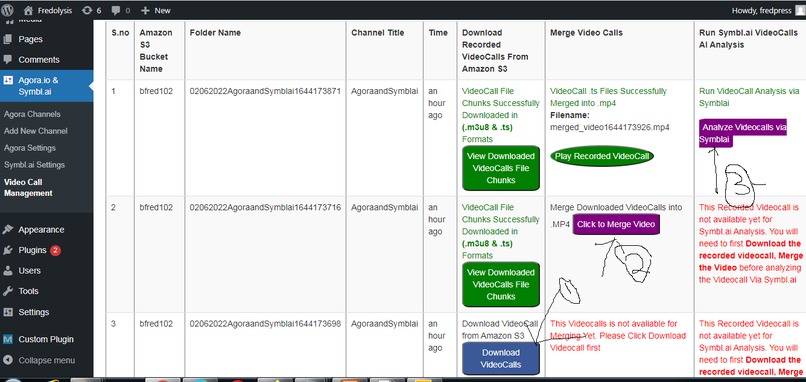
Recorded Videocalls Download, Videocall Merging and Symblai Conversation Analysis System
-
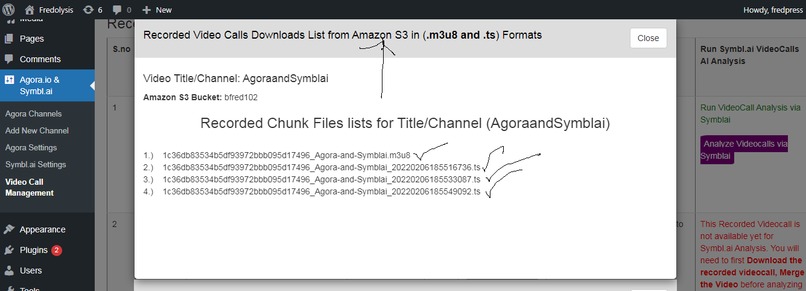
Downloaded Recorded Videocalls Chunk Files from Amazon S3
-
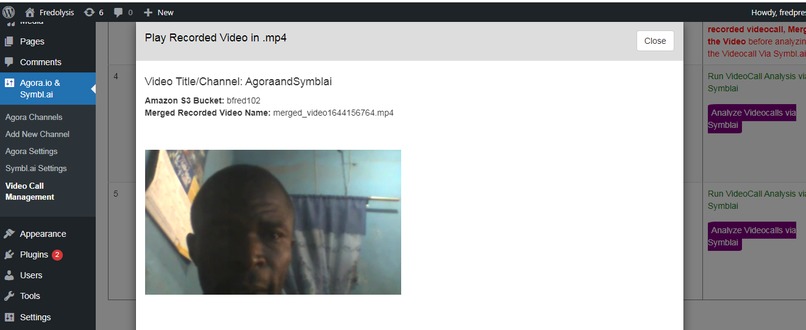
Recorded Merged Video in mp4 being played
-
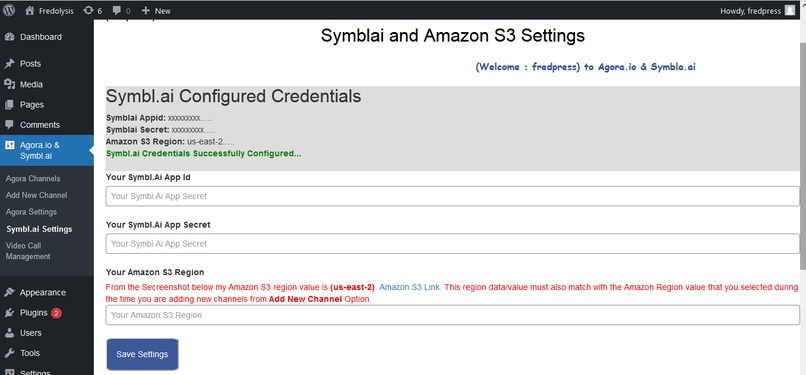
Symbai and amazon s3 Credential Settings
-
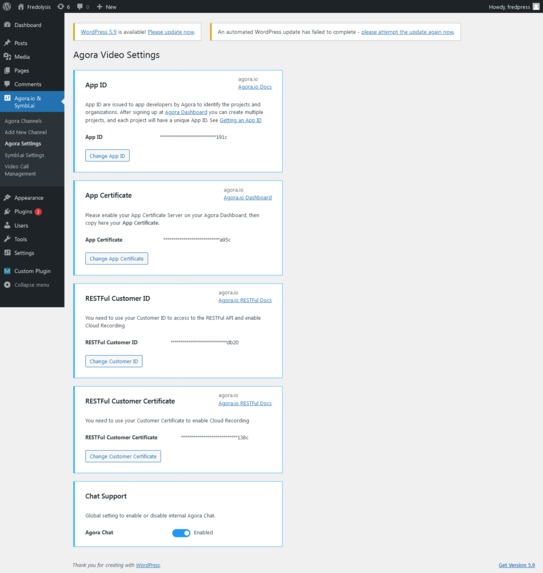
Agora Settings
-
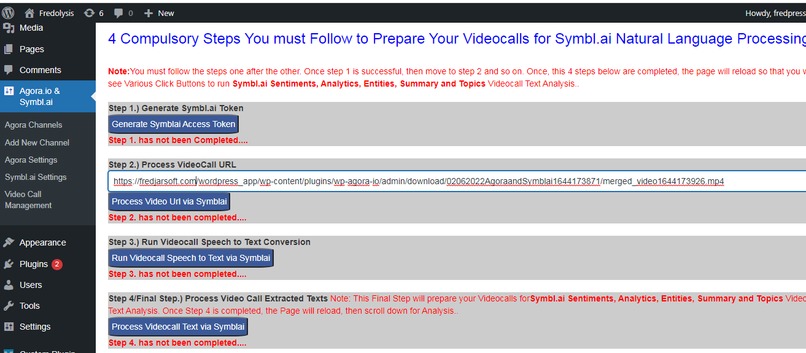
Symblai Videocalls Conversational Analysis Steps
-
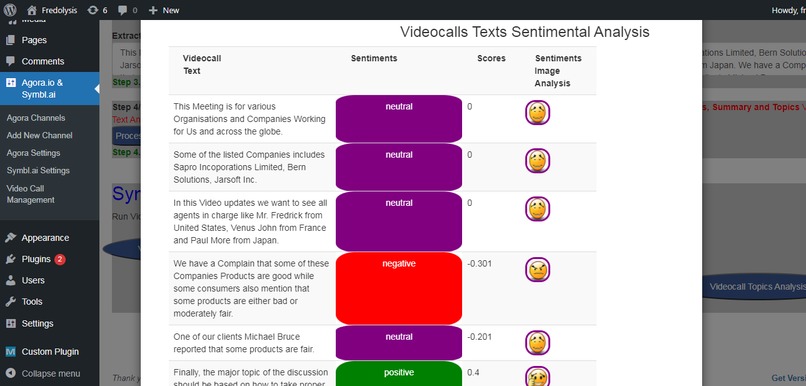
Video Calls Sentimental Analysis
-
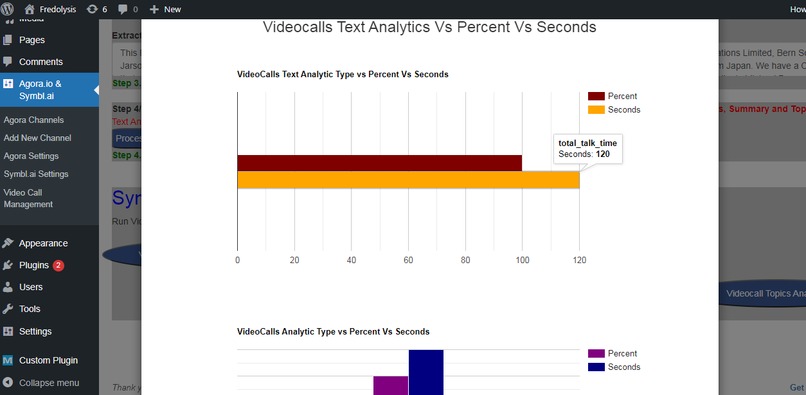
Videocall Symblai Analytics Statistics
-
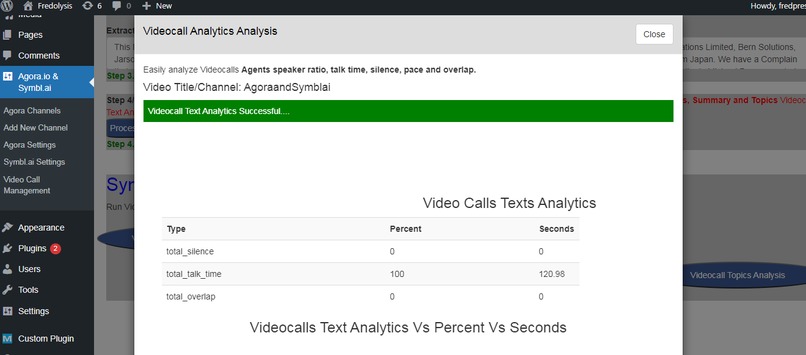
Videocall Symblai Analytics NaturalLanguage Processing
-
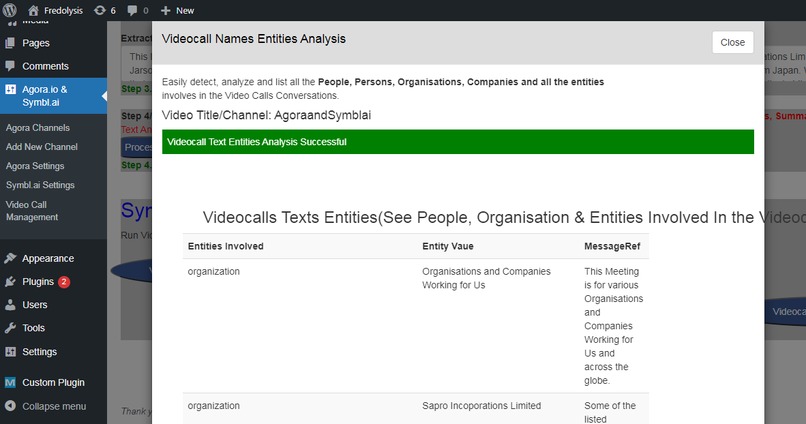
Videocall Name Entities Analysis
-
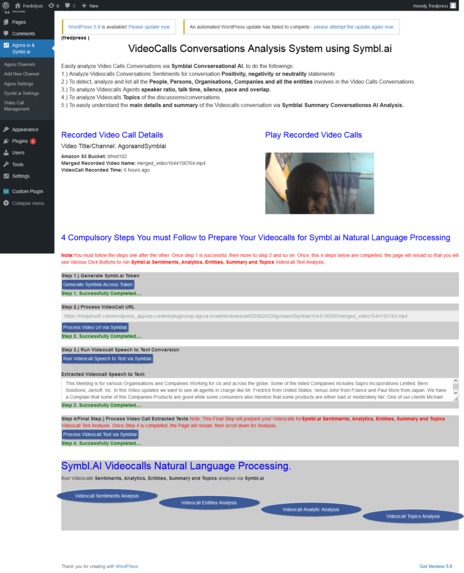
Videocall Symblai Conversational Analysis System
-
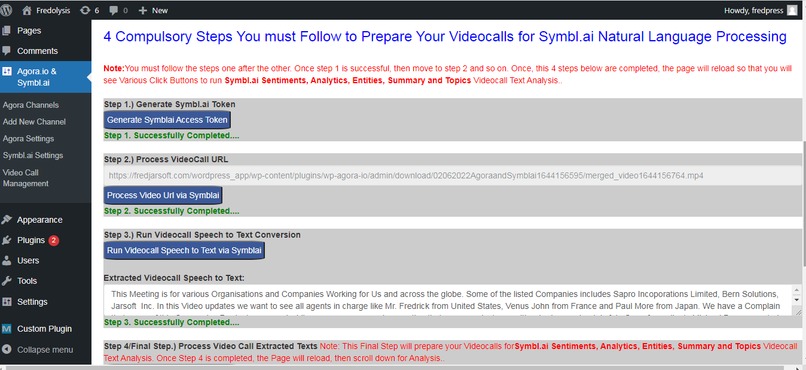
Videocall Symblai Conversational Steps Analysis
-
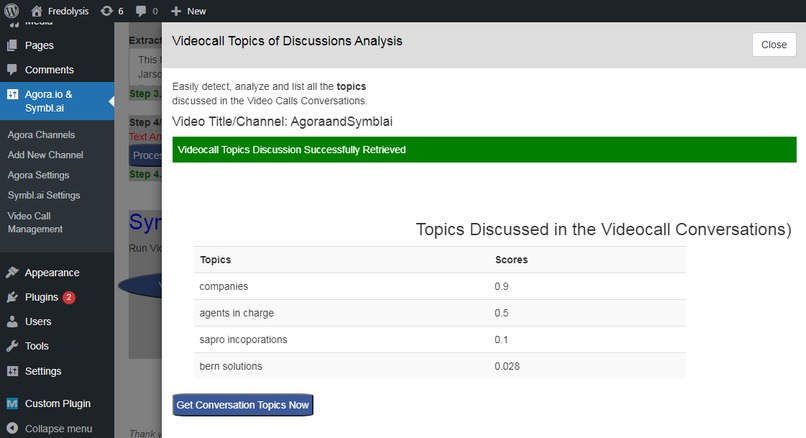
Videocall Topics Conversation Analysis
-
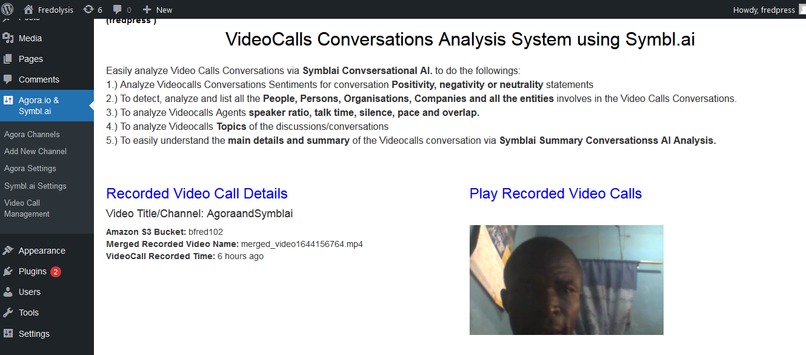
Videocalls Symblai Conversation System
-
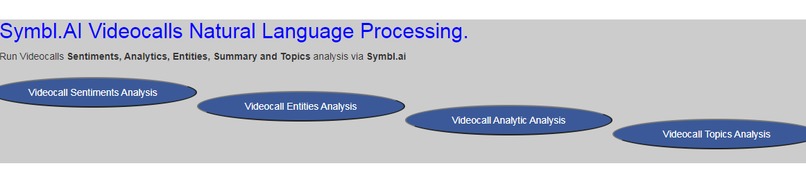
Videocalls Symblai Conservational System


Hint!
Agora VideoCall for WordPress plugin allows Users to add live Video call broadcast or video conferencing functionality to WordPress posts and pages. Source: https://wordpress.org/plugins/wp-agora-io/
We work on this contest to enrich Agora Videocall Wordpress Plugin for Users/Customers experience by updating some functionality, introducing some new features and by integrating Symbl.ai Technologies.
Inspiration
Video Calls Tele-Presence plays vital roles in Team Works Collaborations, Virtual Meetings/Conferencing, Doctors-Patients Interactions, Students-Teachers Conferencing and many more.
Both Agora.io and Symbl.ai plays a very big roles in the World of Text, Audio and Video Calls Conversations Analysis.
Agora.io Integrations
By leveraging Video Streams from Agora Video Call Pluginbuild on top of Wordpress , we realized that we could add some functionality that is lacking to further simplify and automate certain tasks to better provide more understanding, insights and the full detail of the Video Call Conversations. This will have along in helping Students, Teams, Organizations etc. in their learning Process, Communications, Business and and in the decision making processes.
For instance, in addition to Agora Video for WordPress plugin Features, We simplify and automate some certain tasks that automatically does the following under-listed functions for users which includes
- Automatically change Video Call Recorded Cloud Storage Directory on Amazon s3. Initially every directory name is based on combination of days, month , year and default Video Channel title name. something like 02062022AgoraandSymblai We attached to time() function on the directory to keep each Recorded Videocall Directory on Amazon S3 Unique. so it will be something like 02062022AgoraandSymblai1644163385
- Ability to Download and View all the Recorded Video calls directly from Amazon S3 Cloud Storage (Both .m3u8 and all .ts) files.
- Ability to Merge all the .m3u8 and .tsfiles together into a single .mp4
- Ability to Play, Listen and Share all the Recorded VideoCall .mp4 Videos directly from Wordpress.
Symbl.ai Integrations
We leverage various Symbl.ai's API to provide deeper understanding and insights into every Videocalls Conversations that is automatically recorded by Agora API that is stored on Amazon S3 Cloud Storage.
By utilizing various Symbl.ai's API, we are able to get every bit of messages or main details of the message in the VideoCalls to facilitate a smooth conversations and interactions.
For instance, the applications automatically provides deep interactions, analysis and understanding of the main messages in the each of Agora Video calls via Symbl.ai Natural Language Processing Model as per
- Speech to Text Synthesis: The application automatically leverage Symbl.ai Speech to Text AI to convert Agora Video calls to text messages to make data readable and understandable in a Text Formats.
- The Applications leverages Symbl.ai Sentiments API to run sentimental analysis of the Agora Recorded VideoCalls to breakdown the Videocall Conversations to more easy and digestable form. It analyzes each of the Agora Videocall Conferencing/Broadcast for Positivity(Happy), negativity(Sad) or neutrality(Mild) statements.
- The Applications leverages Symbl.ai Entity API to detect, analyze and list all the People, Persons, Organizations, Companies and all the entities involves in the VideoCalls Conversations.
- The Applications leverages Symbl.ai Analytic API to analyze each of the Agora Recorded Video Calls for Agents speaker ratio, talk time, silence, pace and overlap
- The Applications leverages Symbl.ai Topic API to analyze all the major topics of discussion in each of the Agora VideoCalls. This help to save more time and energy by pointing out to the user the main topics of the the Videocalls Conversations and discussions.
- The Applications leverages Google Statistical Graphs/Charts to display Graphical/Charts Visualization of the Agora Video Calls Sentiments and Analytics leveraging Symbl.ai Sentimental and Analytics Videocalls Data
.
.
How to Use the Applications
1.) Upload Our Application to Wordpress Plugin Directory and Install. Upon Plugin Installation, all the database tables are automatically created.
2.) Goto Agora Setting on Wordpress to enter the following Agora Credentials App Id, App Certificate(Primary Ceritifcate), Restiful Customer Id, Restiful Customer Ceritificate/Secret.
3.) Visit Your Agora.io Dashboard Console to Enable both Cloud Recording and RMTP Server directly on your Agora Dashboard.
You can enable Cloud Storage and RTMP Converter by clicking on your project name-->config and then select each duration under Cloud Storage and RTMP Converter
respectively. Scroll down to to Click Enable Cloud storage button and then click Apply Button. Then do the same to scroll down to Enable RTMP button and then click Apply Button too.
4.) Goto Add New Channel on Wordpress to add your Videocall Broadcast/Communication Channels. You must enter the followings Channel Name, Select Channel Type then scroll down on the same page and underChannel Recording, You will need to enter your Amazon S3 Cloud Storage Credentials which includes Vendor, Region, bucket, Access Key and Secret Key. For details visit your Amazon S3 Cloud Storage. https://s3.console.aws.amazon.com/s3/
Once you have successfully Created your Channel, Then Goto Agora Channel on Wordpress and you will see the Channel name that you have created. Please copy the the Wordpress ShortCode generated for You on that Page. Shortcode looks like [agora-broadcast channel_id="31"].
Once You copied the ShortCode, click on Pages--->Add New. Paste the Shortcode on the new wordpress Page that you are creating and click on Publish button and your Page will be created.
5.) Goto Symbl.ai Settings on Wordpress and enter Symbl.ai App Id and App Secret. You will also need to enter Amazon S3 Region Value.
For instance my Amazon S3 region value is something like (us-east-2). This region data/value must also match with the Amazon Region value that you selected during the time you are adding new channels from Add New Channel Option in step 4 above. Please the Amazon S3 link above.
6.) Now everything is set, you can visit your Wordpress Page that you created and then Agora VideoCall Broadcast/Conferencing System will be Loaded Automatically. To locate your page click on Pages--->All Pages--->place cursor on your Page Title name and click View
You can the start inviting your Members,Users etc.on that Page to join your Video Call Broadcast/Conferencing. Click on Record Button to Start Recording your Video. When You click on Leave MeetingButton, All the Video calls files are store in your Amazon S3 Cloud Storage in the form of .m3u8 & .ts File Formats.
Its Time to start Managing all your Agora Recorded Videocall on Amazon S3 Cloud Storage.
To start managing your Agora Recorded Video, goto Video Call Management and you will see all directory of all your Recorded Video Calls.
Click on Download Button and the Application will download all your VideoCalls from Amazon S3 Cloud Storage the downloaded Video Calls will be in .m3u8 & .ts formats. To view Downloaded Videocall Chunk Files, click on View Downloaded Video File Chunk Button.
Its time to Merged downloaded Video File Chucks into a single .mp4 file formats. To merge Videocall Files Chunks, click on Merge Video Button. The application will automatically make call to ffmpeg.exe file referenced in our php codes by leveraging Agora.io Videocall Merging Function. See Agora Docs: https://docs.agora.io/en/cloud-recording/cloud_recording_convert_format?platform=RESTful
Once the Videocall is successfully merged into a single .mp4 file format, The user can click on Play Recorded Videocall button to start Playing the Videocall.
Now the Videocall is successfully downloaded and merged, It s time to leverage Symbl.ai Models to analyze the Video Calls for Conversation deep analysis and Natural Language data insights. To this effect, Click on Analyze VideoCalls via Symblai button for each of the Videocall that you want to analyze. On next Symbl.ai VideoCalls Conversations Analysis System that loads, you will need to follow 4 Compulsory Steps to prepare your Videocalls for Analysis via Symbl.ai.
1.)Generation of Symbl.ai Token
2.)Processing Agora Videocalls URL
3.)Run Video Calls Speech to Text
4.)Process Videocall Text.
Once, this 4 steps above are completed, the page will reload so that you will see Various Click Buttons to run Agora Videocalls for Sentiments, Analytics, Name Entities and Topics Videocall Analysis by clicking on the respective buttons
How we built it
The application was built with Wordpress, Php, Agora,io, symbl.ai, Amazon S3 CloudStorage, Jquery/Ajax, Bootstraps etc.
About Our Codes & Its Sizes
Our Zippped Code Files is about 35.4 mb. This because our application leverages
ffmpeg.exe (70.8mb) file which Agora.io recommended for merging of .m3u8 and .ts files into single .mp4 video. We downloaded it from https://ffmpeg.org/download.html#build-windows
Agora Video Merging Documentation Source: https://docs.agora.io/en/cloud-recording/cloud_recording_convert_format?platform=RESTful
Secondly,to be able to download and proccess Agora.io Recorded Video that is stored on Amazon S3 Cloud Storage We install AWS SDK for PHP via Composer. this install a vendor/ directory with file size of about 29.3mb all this causes increase in the size of our zipped code.
source: https://docs.aws.amazon.com/sdk-for-php/v3/developer-guide/getting-started_installation.html

Log in or sign up for Devpost to join the conversation.