-
-
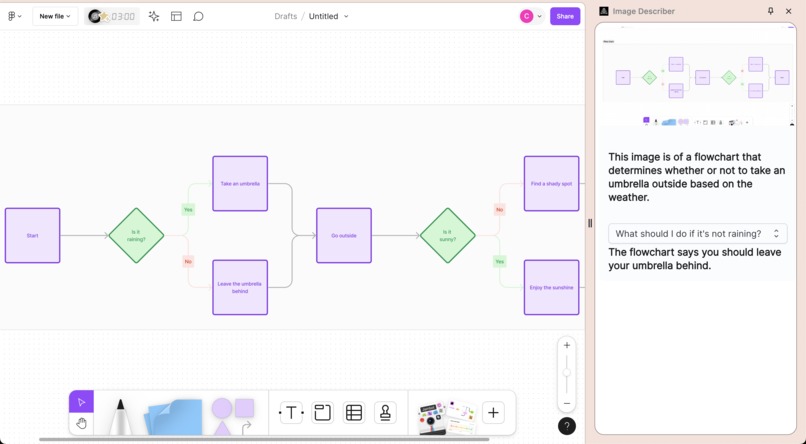
Describing a flowchart in Figma
-
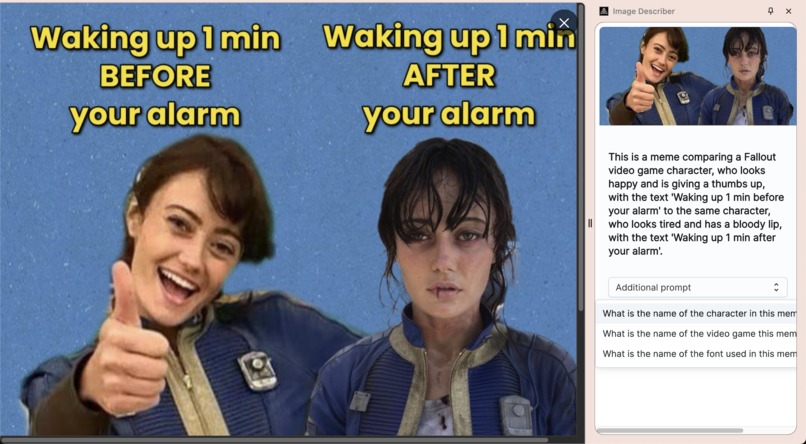
Describing a Fallout meme
-
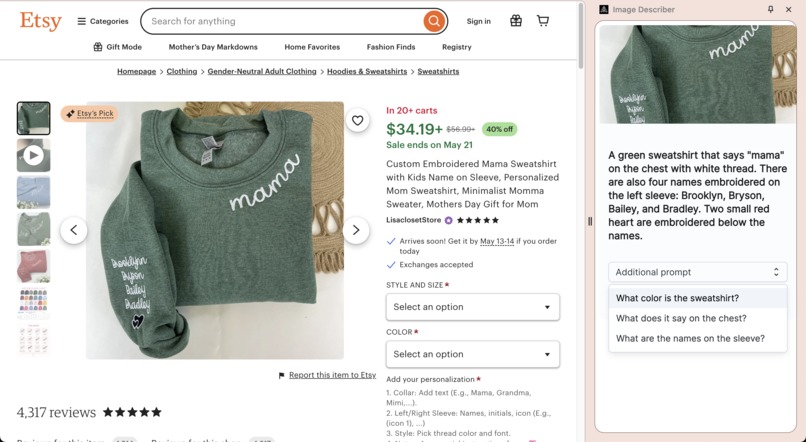
Describing a product on Etsy.com


Inspiration
Digital applications are a game changer for people with disabilities, when they are built with accessibility in mind. A meal ordering app; accessible banking that avoids the hassle of travel; audio in video games that allow blind people to play -- and win! These are all real scenarios that enrich everyone's lives, but especially people with disabilities.
None of this has been possible without well crafted UI. However, even when product teams take into account accessibility, there are still sometimes gaps or roadblocks. To date, blind people have relied on sighted assistance and support, either through a colleague, customer support desks, or volunteer services like Be My Eyes. These are effective, but also burdensome, and can compromise a person's privacy.
AI can bridge these gaps in accessible content by providing an "assist" for blind people using the web, while maintaining privacy, convenience, and ease of use. I ventured to help solve this by integrating Gemini Vision and Chrome. Google Chrome is ubiquitous in the blind community, with over 50% using it as their primary browser according to the most recent Webaim screen reader survey
What it does
Image Describer is a Chrome Extension that uses AI to describe content in the browser for blind and low vision people. A person can get a description either through the content menu or with a keyboard shortcut. The description is announced back to the user, and is also available as text for review.
The extension also returns followup questions with pre-loaded responses, which support a call-and-response style interface without long delays between requests.
How I built it
I created a Chrome Extension using CRXJS that sends base64 encoded image data to a service running on Google Cloud Platform. The service proxies images to the Gemini Vision API, along with a prompt to split out the description into bite sized chunks. The background script in the Chrome extension then parses the response into and announces it to the user via Chrome's TTS engine. The response also gets presented to the user in the extension popup, where they can choose from a list of followup questions, also generated by Gemini.
I use a simple single shot prompt like so:
    const prompt = `This image was submitted by a blind person to get an image description, with the question "What's in this image?".
    Provide a succinct response in under 10 words that will be announced back to the user.
    Also provide a list of 5 questions that the user could ask about the photo based on the provided description,
    along with the answers to those questions. Return you response as valid machine-readable JSON with 2 keys, 'description' and 'followups'
    with an array of values whose keys 'question' and 'answer'. For example:

    Prompt: [image]
    Response: {"description":"add a short description here","followups":[{"question": "Add a question here", "answer": "Add an answer here"}, ...]}
    `;
Challenges I ran into
At first the descriptions were very long and detailed, which was useful but I heard feedback that it could be too tedious for blind users. To address this, I added a "quick description" option, and eventually moved to a progressive disclosure pattern, where the initial description is more brief, and there is an option to present followup questions.
Also, initially the extension could only be triggered with the context menu, which made it hard for screen reader users to invoke the description. In response, I added a keyboard shortcut to describe the full tab instead of just a single image.
Accomplishments that I'm proud of
On the product side, I'm especially proud of the insight to use progressive disclosure approach to reduce the verbosity of the messages without losing detail. From an impact standpoint, I'm thrilled to see some of the feedback on the Chrome Web Store. Some examples:
This extension is fantastic. I've been using it to help with description for complex images and then refine the output for my team of content creators.
Works great, so much better than other image describers I've used!!!!
Thank you for this wonderful easy-to-use and very useful extension.
I've also gotten great feedback and signal from the r/blind subreddit and discord channels.
What I learned
I started by using OpenAI's Vision API, but switched to Gemini because the responses were more succinct and to the point, which was important for this application. It was enlightening to see the differences between the 2 models.
I was surprised that many people who are not blind have been using the extension to help support their teams in creating initial alt text for images. This was an unexpected but welcome use case.
What's next for Image Describer
I'm looking forward to continuing to respond to feedback from the blind community through Discord and Reddit groups to refine features. I'm working on internationalization and translations, and a chat style interface for deeper inquiry into images.
Testing notes
For expedience, the live extension is here and uses the same code but with a deployed service: https://chromewebstore.google.com/detail/image-describer/ogoddjgogmlndofcpkljmmdobjpfdolf
Local Setup & Installation
You can test the Chrome Extension locally by starting image-describer-server on localhost and building + installing the unpacked extension. The zip files for each of these are in the linked Dropbox folder in the submission.
Server
cd /path/to/image-describer-server$ cp .env.sample .env- Fill in
GOOGLE_AI_API_KEYin.env(1password link with the key was sent to testing@devpost.com) $ yarn && yarn start
Extension
$ cd /path/to/image-describer && yarn && yarn dev- Visit chrome://extensions in Google Chrome and install the unpacked extension from
/path/to/image-describer/dist.
Usage
With the server running and the unpacked extension installed, right click on a <img> element and choose Image Describer > Describe image. You can also describe the full tab with Image Describer > Describe full screen, or alternatively with the shortcut Shift + Alt + i or Shift + Option + i on a Mac.
Right clicking and describing will open the side drawer where you can view the description and followup Q&A.


Log in or sign up for Devpost to join the conversation.